Professional Presentations, Powered by Sonite AI
How to Use Sonite AI to Create Stunning Presentations
A well-designed presentation keeps your audience focused and makes complex ideas easier to understand. However, creating one from scratch can be time-consuming. Organizing content, designing slides, and keeping your audience engaged all require time and effort.
For students, educators, and professionals with busy schedules, meeting audience expectations can be a challenge. This is where Sonite AI can help. It organizes your content into well-structured slides and suggests layouts that make presentations more engaging and easier to follow.
This step-by-step guide shows you how to use Sonite AI to create professional, interactive presentations in minutes.
What Is Sonite AI?
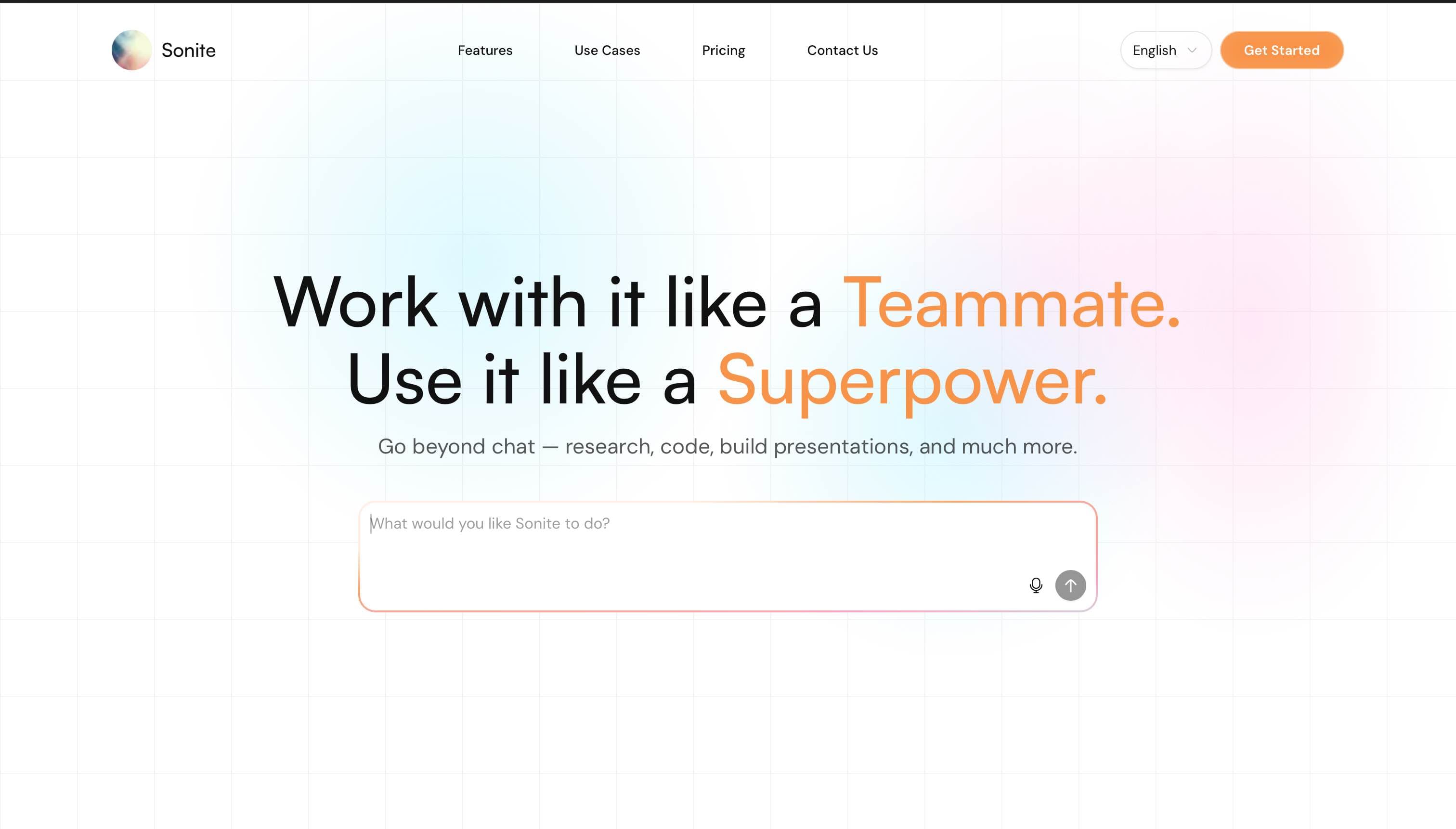
Sonite AI is an AI-powered assistant that helps users create presentations, websites, slides, code, and other content using simple prompts. Users only need to provide the necessary information, and Sonite AI generates the requested content within minutes.
The tool uses advanced AI technology to understand user requests in real time. It selects the best approach for each task and builds task-specific workflows for efficient execution. Sonite AI can browse the web, fill out online forms, and perform tasks on your behalf. It can also generate new code, improve existing code, and fix issues in previously written code.
Another useful feature is its self-healing capability. If an error or glitch occurs, Sonite AI attempts to resolve the issue automatically, allowing you to continue working without interruption.
One of Sonite AI's standout features is its cloud computer, which starts in seconds. You can return at any time, reopen saved sessions, and continue working from where you left off. Whether you are writing code, preparing research, or developing a business presentation, Sonite AI works as a reliable assistant, completing your tasks efficiently.
Why Use Sonite AI for Presentations?
Creating an engaging presentation requires more than attractive slides. The content must be well-structured, easy to understand, and tailored to the audience. Achieving this balance often takes careful planning and multiple revisions.
Sonite AI speeds up the entire process by transforming a simple prompt into a structured presentation. Instead of spending hours planning slide order, the tool organizes your ideas into logical sections, allowing you to start with a solid draft instead of a blank canvas.
The platform also makes presentations easier to customize. You can rewrite content, adjust the tone, add visuals, expand important sections, or shorten lengthy explanations. This flexibility allows you to create presentations for different audiences without rebuilding them from scratch.
For educators, Sonite AI can simplify lesson planning by creating organized classroom presentations. Students can use it to prepare project slides faster while focusing on research. Organizations can develop training materials, client proposals, and internal presentations with less manual effort.
Since every AI-generated presentation can be edited, you remain in control of the final result. This makes it easier to deliver presentations that match your goals, audience, and preferred style.
Step-By-Step Guide to Using Sonite AI to Create Stunning Presentations
Creating a presentation with Sonite AI does not require technical expertise. You only need a clear topic and a few key details. Sonite AI takes care of organizing your content and designing a well-structured presentation.
To get started with creating presentations using Sonite AI, follow the step-by-step guide below.
Step 1: Create or Sign In to Your Sonite AI Account
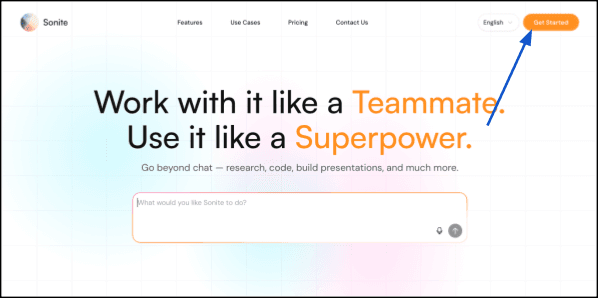
Begin by creating a Sonite AI account if you are a new user.
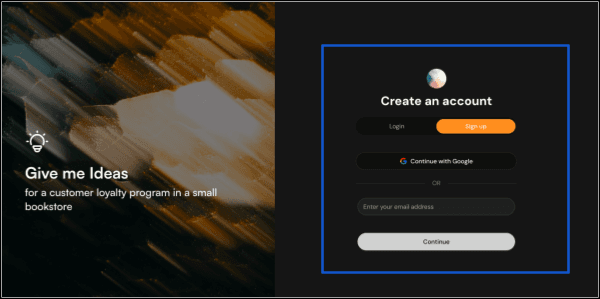
If you already have an account, simply sign in using your registered email address. You can also choose a subscription plan that matches your needs. Sonite AI offers a free plan, while its paid plans provide access to more credits and additional features.
Step 2: Start a New Conversation
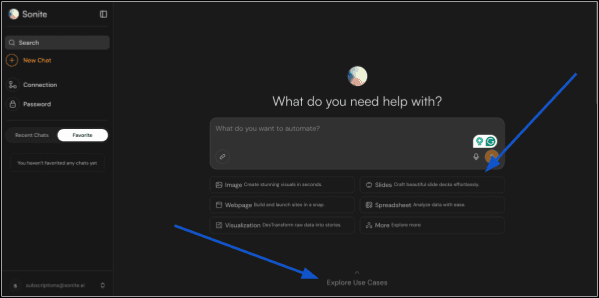
After signing in, you will be taken to the Sonite AI dashboard. Here, you can access the available tools and explore different case study prompts. These examples help you to understand how the platform works and inspire your own requests.
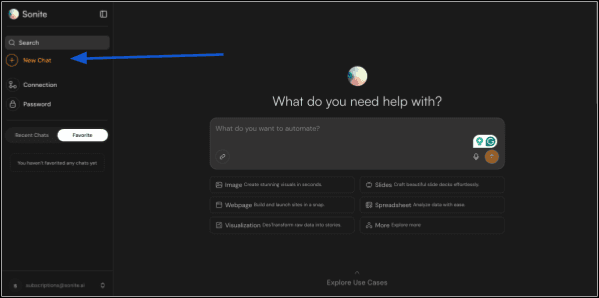
To create a presentation from scratch, click New Conversation. A new chat window will open where you can interact with Sonite AI. This workspace allows you to enter your presentation topic, provide instructions, and refine your request as needed.
Before moving to the next step, take a moment to explore the dashboard. Familiarizing yourself with the interface makes it easier to locate previous conversations, reopen saved projects, and continue unfinished work whenever needed. Once you are ready, you can begin describing the presentation you want Sonite AI to create.
Step 3: Enter Your Presentation Topic or Prompt
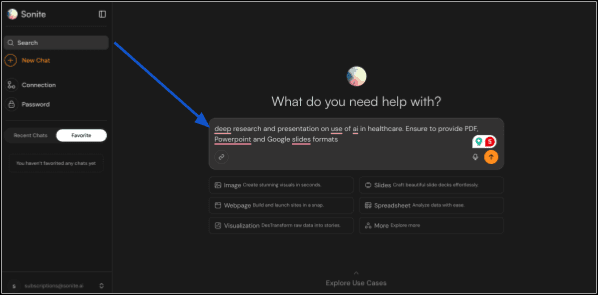
Now it is time to tell Sonite AI what you want to create. The quality of your prompt plays a major role in the final presentation. A clear and detailed prompt allows the AI to understand your requirements and generate more relevant slides.
Start by entering your presentation topic. Then include details such as your target audience, presentation purpose, tone, and the number of slides you need. You can also mention whether the presentation is for a classroom lesson, business meeting, training session, research project, or client proposal.
For the best results, provide as much context as possible. If you want Sonite AI to include charts, images, speaker notes, or references, mention these requirements in your prompt.
Example Prompt:
Create a 12-slide presentation on cybersecurity awareness for college students. Use a professional yet easy-to-understand tone. Include relevant statistics, simple diagrams, speaker notes, and a summary slide with key takeaways.
Step 4: Specify Your Preferred Presentation Format
Once you have finalized your prompt, specify how you want the presentation to be generated. Mention your preferred output format, presentation style, and any design preferences. This allows the tool to create slides that match your expectations.
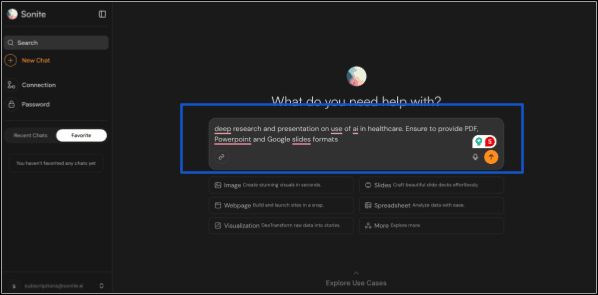
For example, you can request a PowerPoint presentation, a PDF, or another supported format. You can also specify whether you want a formal, modern, or minimal design. If your presentation needs your organization's branding, mention your preferred colors, logo placement, or font style.
If you have additional requirements, include them before submitting your request. Providing these details directs Sonite AI to generate a presentation that requires fewer revisions and better suits your audience.
Step 5: Generate Your Presentation With Sonite AI
After you submit your request, Sonite AI analyzes your prompt and begins creating your presentation. Depending on the complexity of your request, the process usually takes only a few moments.
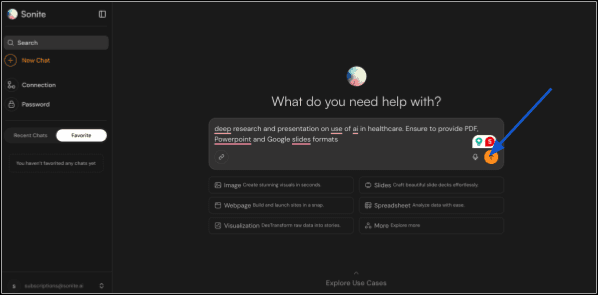
During this stage, Sonite AI organizes your content into a logical structure and creates slides based on your instructions. It generates headings, supporting text, and visual elements that match your selected style and presentation goals.
Step 6: Review and Customize Your Presentation
Once your presentation is generated, review each slide carefully before using it. While Sonite AI creates a strong first draft, you should make sure the content is accurate, relevant, and appropriate for your audience.
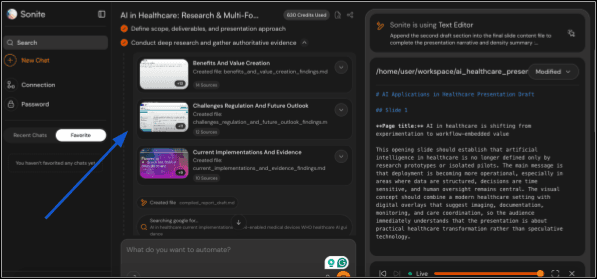
Edit the text wherever necessary to improve clarity or add missing information. You can also rearrange slides, update headings, replace visuals, or include additional examples and statistics. If your presentation represents a school, business, or organization, add your logo, brand colors, or preferred fonts to maintain a consistent look.
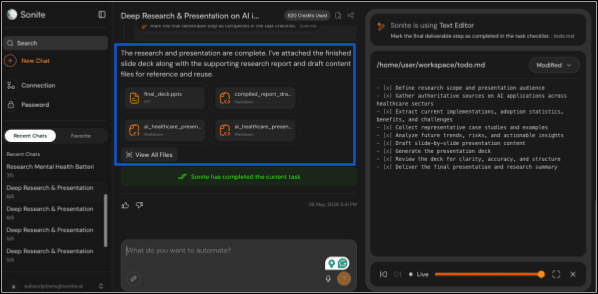
Finally, check that the presentation flows smoothly from one slide to the next. A quick review helps you in identifying formatting issues, repetitive content, or factual errors before sharing or presenting your work.
Step 7: Export and Share Your Presentation
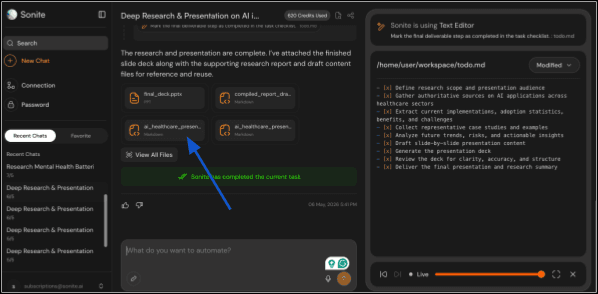
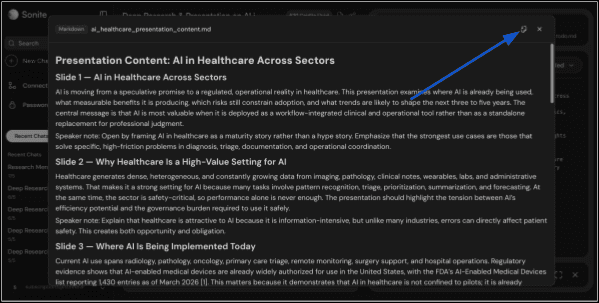
After you are satisfied with your presentation, export it in your preferred format. Choose a format that meets your presentation or sharing requirements, such as PowerPoint, Google Slides, PDF, or HTML.
Best Practices for Creating Better AI Presentations Using Sonite AI
1. Understand Your Audience
Before creating your presentation, identify who will be viewing it. When you are aware of your potential audience, you are able to choose an appropriate tone, level of detail, and supporting examples. A presentation that works for college students may not be suitable for business executives or young learners.
Example: If you are preparing a lesson for high school students, use simple language, visuals, and real-life examples. For a board meeting, focus on data, key insights, and concise recommendations.
2. Write Clear and Detailed Prompts
A detailed prompt gives Sonite AI the context it needs to generate a more accurate presentation. Include your topic, audience, goal, preferred tone, number of slides, and any special requirements.
Example: Instead of writing "Create a presentation on climate change," write "Create a 10-slide presentation on climate change for high school students. Use simple language, include recent statistics, add relevant visuals, and end with a summary and discussion questions."
3. Avoid Cramming Slides
Keep each slide focused on one main idea. Too much text can overwhelm your audience and make the presentation difficult to follow. Use short bullet points and explain the details while presenting instead of placing everything on the slide.
Example: Instead of filling one slide with five long paragraphs, divide the information into three slides with concise bullet points, visuals, and key takeaways.
4. Maintain Consistent Formatting
Use the same fonts, colors, headings, and slide layouts throughout your presentation. Consistent formatting gives your presentation a professional appearance and makes it easier for your audience to follow.
Example: Use the same font style and size for all headings, keep your color scheme consistent, and place images and charts in a similar position on each slide.
5. Support Information With Examples and Facts
Back up your key points with relevant examples, facts, or reliable statistics. This makes your presentation more informative, credible, engaging, and easier for your audience to understand.
Example: Instead of saying "Cyberattacks are increasing," include a recent statistic from a trusted cybersecurity report and explain how it relates to your topic. Adding a real-world example can further strengthen your message.
6. Keep Text Short and Easy to Read
Use concise text that highlights the main points of your presentation. Long paragraphs can distract your audience and make slides harder to read. Let your slides support your presentation rather than replace your explanation.
Example: Instead of writing a full paragraph about a marketing strategy, summarize it in three or four bullet points and explain the details while presenting.
7. Use Visuals That Support Your Message
Choose visuals that explain or reinforce your ideas. Relevant images, charts, diagrams, and icons make information easier to understand and keep your audience engaged. Avoid decorative visuals that do not add value.
Example: If you are presenting quarterly sales data, use a bar chart or line graph instead of listing every figure in text. This allows your audience to understand trends more quickly.
Common Mistakes to Avoid When Using Sonite AI to Create Presentations
1. Accepting AI-Generated Content As It Is
AI-generated presentations provide a strong starting point, but they should not be used without review. Always check the content for accuracy, clarity, and relevance before presenting it.
2. Overloading Slides
Trying to fit too much information on a single slide can make your presentation difficult to read and understand. Keep each slide focused on one main idea. Use short bullet points and move detailed explanations to your spoken presentation or speaker notes.
For instance, instead of placing six long paragraphs on one slide, divide the content into multiple slides. Use headings, bullet points, and relevant visuals to present the information more clearly.
3. Skipping Proofreading
Even well-generated presentations can contain spelling mistakes, formatting issues, or factual errors. Proofreading identifies these problems before presenting. It also ensures your slides are clear, professional, and easy to follow.
4. Using Irrelevant Visuals
Visuals should support your message, not distract your audience. Adding unrelated images, unnecessary graphics, or low-quality visuals can make your presentation look less professional and confuse viewers.
For example, if you are explaining a scientific concept, use diagrams that clarify the topic instead of images that do not add any useful information.
Final Verdict
Presentations play an important role in classrooms, workplaces, and professional settings. However, creating clear and engaging slides often takes significant planning. Sonite AI can simplify the early stages of presentation creation by turning ideas into organized slides. It gives users a strong starting point that they can review and adjust according to their goals.
The final quality still depends on how well the content matches the audience and purpose. When used with proper guidance and review, Sonite AI helps users create more effective presentations with less effort.
FAQs
1. What Makes a Good Prompt for Sonite AI Presentations?
A good Sonite AI prompt includes the presentation topic, audience, tone, number of slides, and specific requirements like visuals or examples. It should also include details about the preferred format, style, and design preferences.
2. How Long Does Sonite AI Take to Create a Presentation?
Sonite AI can create a presentation within minutes. The exact time depends on factors like the complexity of the topic, the number of slides, and the level of customization required.
3. Is Sonite AI Free?
Sonite AI offers a free plan that allows users to explore its features. Affordable paid plans are also available for users who need more credits and additional capabilities.